How QR Code Photo Sharing Works for Guests
Use one QR code to send every guest to the same event album. They open their phone camera, tap the link that appears and choose photos to add. With Evental, guests use their browser and don’t need an account.
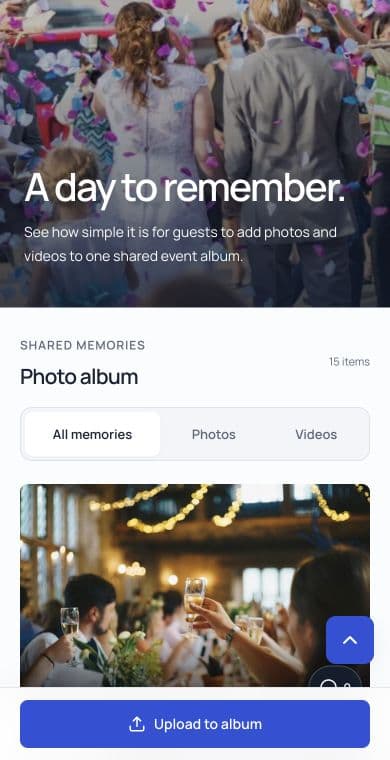
What guests see after scanning
- Open the phone camera, point it at the sign and tap the link. The album opens in the browser.
- Tap Add photos or Add photos & videos when uploads are open. Select the files you want to share and keep the page open until upload finishes.
- In a shared album, guests can also browse the collection. In an upload-only album, they can contribute without seeing other uploads. If the venue connection is weak, use the same link later.
For the exact buttons, print checklist and fixes if a code won’t scan, follow the event photo QR setup guide.
When is a QR album useful?
Use it when guests don’t already share a group chat, or when you want one collection to review and download afterwards. A group chat may be enough for a small group that is already in it. If you want contributions without making the gallery visible to everyone, use upload-only mode and share the link with the intended guests. See the comparison with messaging groups and shared photo services.
- Birthday party photos: put a card near the cake and send the link after the party.
- Wedding guest photos: put one code near the guestbook and copies on reception tables.
- Company event photos: put the code on the closing slide and tell attendees how the images will be used.
See the album from a guest’s phone
Open the example album to see what guests see, or personalise your own draft before paying to open guest access.
See the guest demo →